
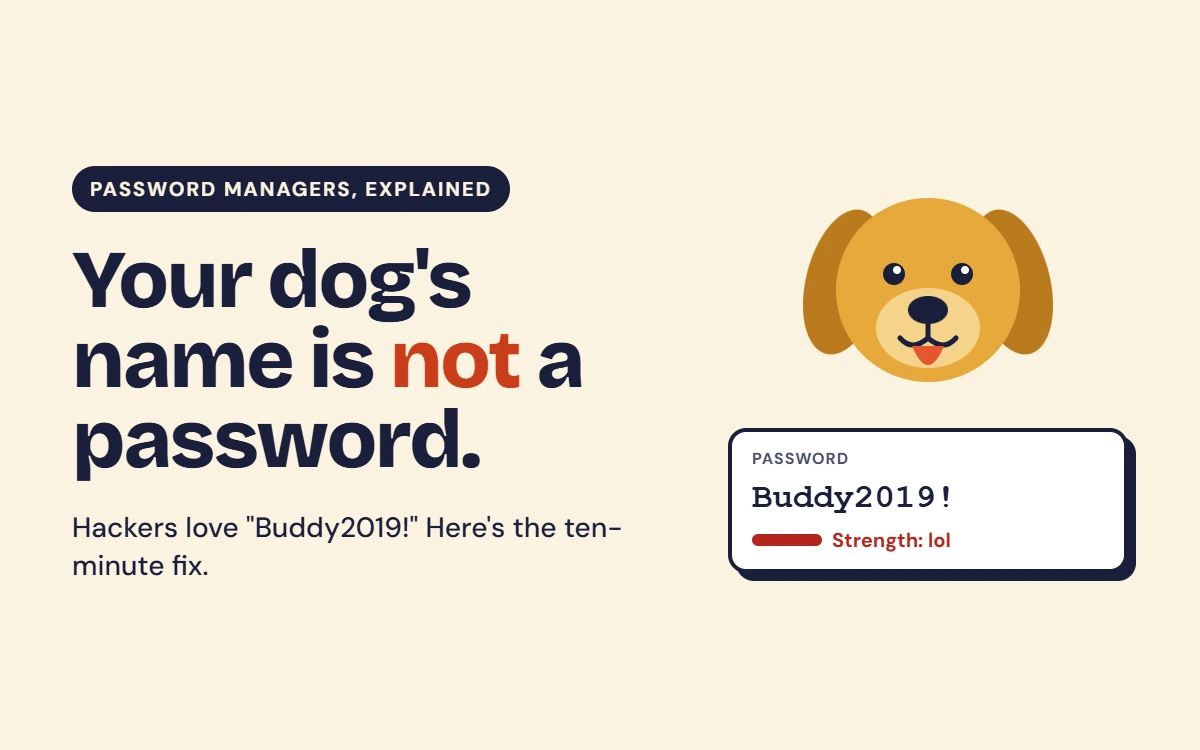
Mike, a handsome guy, lives in Columbus, Ohio, loves the Buckeyes, and has a golden retriever named Buddy. Mike is very dependent on the digital lifestyle as we all are. He has around 80 online accounts and most of them have the same password Buddy2019!. Though Mike is made up but If we can relate this with our life, something we have the same condition, and we love to use the same password, and we are lazy to change the weak password.
Mike joined a fantasy football website in 2017 and one Friday night, it got hacked. It’s been long days Mike is not logging into this website and Mike really forgot about the website. What happened next, all the leaked email addresses, lists of passwords were in the grab of the hackers. They tried to login using the leaked passwords to the accounts like, Gmail, Amazon, PayPal, Venmo, and many big banks. The whole process took a few minutes to finish and there was no involvement of any human.
Next morning, Mike got up from sleep and found something alarming that he was not being able to login to his accounts. In the meantime, around 1400 USD in gift cards has been bought. All the money from Venmo is gone. His mother received a message “Mom, I’m in a jam, can you buy some gift cards?” Here in this article what we have tried to focus that how a password manager could help Mike to save and enjoy the weekend. If Mike used to use a password manager and used different complicated passwords for each accounts then he could survive this incident.
Do You Know What a Password Manager is?
It is kind of a digital locker for all your passwords from where you can manage your passwords, what you need is to remember a hard and complicated password to login to this password manager, all other things like encryption, creating long complicated passwords for different accounts will be managed by the password manager app.
It helps you to put the password to the accounts in a secure way using the password manager plugins for the browsers, where you don’t need to remember the long or complicated password. So, what helps:
- It creates long, random, unique passwords for every account.
- It stores them safely (encrypted, which means scrambled so no one else can read them).
- It fills them in for you when you log in.
How Cyber Attackers Take Control of Your Accounts
There is a common sight that many people imagine that, hackers are typing very fast and targeting the victim by sitting in a dark room. But in real life, these things are not that much destructive looking. The attackers used to use automated tools and at a time within a few minutes they attack millions of victims. I am sharing a few common methods here:
1. Credential stuffing: one key, every door
Think of your password as a house key. Now imagine you copied that same key and left one under the mat at a gym, one at a pizza place, and one at a random forum you joined in 2016 to argue about grilling.
Then the pizza place gets robbed, and the burglar walks off with a bag of keys. What’s the first thing he does? He tries every key on every house in town.
That’s credential stuffing. When a website gets hacked, your email and password leak. Hackers then test that same combo on Gmail, Amazon, PayPal, and your bank. It takes seconds, and robots do it for them. So your “I’ll just reuse it, who cares” password for a barbecue forum can end up unlocking your actual life.
Quick fix: a different password for every site. (Your password manager does this for you, so you don’t need to remember 80 of them.)
2. Guessing: “Buddy2019!” is not a secret
Be honest. What’s your password? Your dog’s name? Your kid’s birthday? Your favorite team plus the year?
Attackers know. They don’t sit there thinking hard. Their software tries millions of guesses a second, starting with the greatest hits: “123456,” “password,” “iloveyou,” “Buckeyes2020.”
And no, changing it to “Buckeyes2021” doesn’t make you a mastermind. Adding a “!” at the end or swapping an “a” for “@” is the first thing they try. It’s like putting on sunglasses and a fake mustache to fool a guy who has your photo.
Quick fix: let a password manager create something like vT9#kLq2!rZw8mXb. Nobody will guess it. Not even your dog.
3. Phishing: the fake text from “USPS”
You get a text: “Your package couldn’t be delivered. Click here to fix it.” Never mind that you haven’t ordered anything since March. Your brain goes, “Oh no, my package!” and you click.
The page looks real. The logo is right. You type in your password, and congratulations, you just handed it to a stranger.
This works because scammers play on panic. “Your account will be locked!” “Suspicious login!” “Final notice!” They want you to react before you think.
Here’s a neat bonus: a password manager only fills in your password on the real website. If you land on a fake one, it just sits there doing nothing. That silence is the manager quietly saying, “Uh, I don’t recognize this place.”
4. Malware and keyloggers: the nosy roommate in your computer
Say you download a free movie, a “cracked” version of some software, or open an attachment from “your bank” with spelling mistakes. Surprise: you may have also installed a hidden program that records every key you press.
It’s like having a roommate who reads over your shoulder 24/7 and writes down everything you type, including passwords. Rude.
A password manager helps because you aren’t typing your passwords by hand, so there’s less for a keylogger to catch. Also, a bit of free advice: if a deal looks too good to be true, it comes with free malware.
5. Sticky notes and “notes to self”: the world’s worst vault
We’ve all done it. The password is on a sticky note on the monitor. Or in a notebook labeled “PASSWORDS” (very subtle). Or in your phone’s Notes app. Or texted to yourself, in a thread right under your pizza order.
Then the phone gets lost at the airport, or a coworker walks by, or a repairman glances at your desk. Now everything’s out in the open.
It’s the digital version of hiding your spare key in a fake rock labeled “KEY.”
A password manager locks everything behind one strong master password, plus your fingerprint or face. Even if someone grabs your phone, they get nothing.
What can happen if you don’t use one?
When one weak or reused password is found, the damage can spread quickly:
- Money stolen from bank, credit card, Venmo, Zelle, or PayPal accounts
- Email takeover, which lets attackers reset every other password
- Social media hijacked, then used to scam your friends and family (“I’m in trouble, please send money”)
- Identity theft, where credit cards or loans are opened in your name using details like your Social Security number
- Private photos and messages leaked or used for blackmail
- Business losses if your work or shop accounts are compromised
And the worst part: it often happens silently, and you notice only after the damage is done.
“But isn’t it risky to put all my passwords in one place?”
Great question. It’s the one everybody asks, and it’s a fair one. It does sound a bit like putting all your eggs in one basket.
But think about what you’re doing now. Right now your “basket” is the same three passwords scattered across 80 websites, plus a sticky note, plus that email you sent yourself in 2019 called “passwords FINAL v2.”
A password manager is different. Your vault is encrypted, which just means scrambled so that only you can unlock it with your master password. Even the company that runs the service can’t peek inside. Think of a bank vault versus a shoebox under your bed. Both hold your valuables, but only one has a two-foot-thick door.
So yes, it’s one place. It’s just a really, really well-locked one.
Getting started: ten minutes, one coffee
Good news: you don’t need to be a “computer person” for this. If you can order a pizza on your phone, you can do this. Here’s the whole thing.
1. Pick a password manager
1Password, Bitwarden, Dashlane, Apple Passwords, and Google Password Manager are all solid. If you’re already deep in the Apple or Google world, the one built into your phone is the easiest way to start. Don’t spend three hours reading reviews. Any of these beats “Buddy2019!” by a mile. If you want a professional cybersecurity expert review and want to build your password manager in your own isolated network, you can contact Bitnetica.
2. Make one great master password
This is the only password you’ll need to remember, so make it count. Skip the complicated symbol soup and use a few random words strung together, the suggestion is: don’t use password, use passphrase: like blue-pickup-thunder-coffee-river. It’s easy for you to remember and nearly impossible for a bot to guess.
Two rules: never reuse it anywhere else and never tell anyone. Not your spouse, not your cousin, not the “IT guy” who called you out of the blue.
3. Turn on two-factor authentication (2FA)
This sounds scary, but it’s simple. It’s a second lock on the door. Even if a thief somehow gets your password, he still needs a code from your phone. Turn it on for your password manager and your email. It takes about 60 seconds, and it’s the best security upgrade per minute you’ll ever make.
4. Start with the big stuff
Don’t try to fix all 80 accounts tonight. Start with the ones that hurt most: email, banking, Venmo or PayPal, Amazon, and social media. Let the manager generate brand-new passwords for those. (You won’t remember them, and that’s the point.)
5. Let it fill in the rest as you go
From now on, whenever you log into something, the manager offers to save or update the password. Just say yes. After a couple of weeks, your whole digital life is in there without you doing any extra work. It’s like your messy garage cleaning itself, one box at a time.
6. Put it on your phone and your computer
Install it everywhere you log in, so your passwords follow you around. That way you never have to think “wait, what was my password for this?” ever again.
That’s it. Ten minutes, and you’re already safer than most people you know.
Final thoughts
Here’s the good news: you don’t need to be a tech wizard to stay safe online. You don’t need to understand encryption, firewalls, or what a “cloud” actually is (nobody does, honestly). You just need to stop doing the one thing hackers are quietly hoping you’ll keep doing: reusing the same easy password everywhere.
A password manager handles the hard part. You remember one strong password, and every account you own gets its own lock. It’s like going from one rusty key that opens everything to a fancy key ring where each door has its own key, and a butler carries it for you.
So do yourself a favor and spend ten minutes on this today, before you go back to scrolling. Mike wishes he had. He now has a password manager, a very long master password, and a lot of opinions about fantasy football websites.
(Buddy’s fine, by the way. Still a very good boy. He had nothing to do with any of this.)
The three golden rules (stick these on your fridge)
- One unique password for every account. Because one key for every door is how Mike got into this mess.
- One strong master password that you never share. Not with your spouse, your cousin, or that “bank representative” who just called.
- Two-factor authentication turned on. A second lock is cheap, and a robber hates a second lock.
That’s it. Three rules, ten minutes, zero Buddy2019!
Stay safe out there, and give your dog a treat. Just don’t make it the password.
About the Author

Arefin Imroz is a Network and Systems Engineer with over a decade of experience in networking, cybersecurity, and cloud infrastructure. He holds industry-recognized certifications from Cisco, Red Hat, AWS, Oracle, and EC-Council, including CCNA, RHCE, RHCSA, AWS Solutions Architect Associate, and CEH Practical, and he has supported everything from small offices to enterprise environments with over a thousand endpoints.
Passionate about technology and problem-solving, Arefin believes in building IT environments that are reliable, secure, and efficient. Based in Dhaka, Bangladesh, he is a dedicated professional, husband, and father.